Editable Table Workflow
The editable table is the working prescription for sequential layouts and the
surface/object list for non-sequential scene workflows. A single row is a
KrakenOS surface. A component is one or more adjacent rows grouped as an
Element so that the UI can move, flip, copy, paste, ungroup, and path-tag
the optical component as one unit.
Physical illumination sources are already first-class scene objects through the
Source panel and SETTINGS["scene_sources"]. Use Actions -> Scene Source
Manager... or the Source-panel Scene Source Manager... button to add,
edit, delete, duplicate, or reorder explicit physical emitters. When the selected
source is a physical emitter, the table shows an Illumination Source scene
row beside Object and Image. Double-click that source row to open the
manager. Right-click it for direct source-row actions: edit in the manager,
duplicate, delete when more than one explicit source exists, or move the source
up/down relative to adjacent source rows. The row is not a KrakenOS surface: it
has no table-row index, no trace-surface index, and is skipped when the surface
prescription is read back for tracing. This preserves KrakenOS surface indices
used by ray tracing, path assignment, detectors, and analysis. The source-aware
SceneRowMapping bridge records this source-visible row order while the
prescription rows remain ordinary KrakenOS surfaces. Layouts may request
scene_row_order="before_object" when the source is the intuitive first
entity in the workflow, for example a right-angle beam-splitter illumination
scene where Source 1 illuminates an object through folded optics.
For a single source, the Source panel remains the quick fallback. For multiple
sources, the manager writes explicit scene_sources records. Inspect the exact
scene/table/trace mapping in Actions -> Non-Sequential Scene Graph; the graph
shows the scene row number, current table row, trace surface, and source ID side
by side.
Use Direction preset in the Source panel or Scene Source Manager to orient
physical emitters without manually entering direction cosines. Horizontal +Z
(right) is the normal left-to-right source direction in the YZ layout; the
equivalent manual entry is Source L=0, Source M=0, Source N=1.
In Scene Source Manager, Aim Direction At Row points the selected source
origin at the center of a chosen Object, surface, Image, or file-backed
CAD/STL row. It updates only the source direction cosines, so the source remains
a scene emitter and the optical prescription rows are not reordered or modified.
When a CAD/STL row has assigned optical face roles, the target dropdown also
lists those face anchors, for example 1/F001. Choosing one uses the
transformed face centroid instead of the whole mesh center.
From the CAD/STL face assignment dialog, Use Face As Source Target saves the
selected face roles and opens Scene Source Manager with that face preselected.
From the 3D Inspector, Source Target starts a pick mode: click a surface or
CAD solid and the manager opens on that row; if the click lands near an assigned
CAD/STL optical face, that face anchor is preselected.
Place Origin At Standoff uses the current Source L/M/N direction and the
chosen target row to set Source X/Y/Z a positive distance upstream of that
target. Set a direction preset first when you want a predictable placement such
as Horizontal +Z or Vertical -Y.
After tracing, use Actions -> Source Illumination Report to inspect how each
physical source illuminates the selected Object, aperture, detector, or Image
surface. The report uses traced 3D ray hits and does not add pseudo-surfaces to
the prescription. If rays miss the selected target, the report lists missed
power plus the dominant terminal/loss surface so you can tell whether the source
is being clipped by Object/reference geometry, a stop, a splitter branch, or the
detector aperture. Select a source row in the report to read the full loss,
power, centroid, RMS, and span details without widening the table columns.
The Illum analysis uses the same source-hit records. In Auto target
mode it prefers the final Detector/Image plane because that is the usual
relative-illumination use case for camera sensors. If you need pupil
illumination, set Analysis surface to the desired Aperture/Stop row
or choose that row in the Source Illumination Report Target dropdown before
refreshing.
Loading versus inserting
Use Layouts or Examples when you want to load a complete preset system.
Those presets may intentionally apply object distance, source, field, pupil,
wavelength, analysis, and plot defaults.
Use Insert when you want to keep the current design and add an optic below
the selected row:
Insert -> Common Componentsplices component-style common layouts such as lenses, mirrors, and F-theta components into the current table.Insert -> Stock Lens Catalog...imports Edmund/Thorlabs-style.ZMFstock lenses and expands the selected catalog part into ordinary table rows.Insert -> Optical CAD/STL Solid...inserts a file-backed KrakenOS optical solid row. STEP/IGES vendor CAD is meshed to cached STL automatically.Insert -> Component to Current Path View...inserts a detector, aperture, thin lens, refractive surface, or mirror into the active beam-splitter path.
The insertion commands do not overwrite the current source, field, pupil, wavelength, analysis, or display settings. They only add component rows.
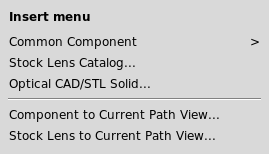
Use Insert for adding optics to the current design without replacing the
active layout settings.
Insertion point
The table uses the current selection as the insertion anchor:
If one or more rows are selected, inserted rows go below the last selected row.
If the selected row belongs to a grouped element, selecting the
#column selects the whole element block.If no row is selected, inserted rows go before the final
Imagerow.ObjectandImagestay anchored and are not treated as component rows.
Surface and element clipboard
The table supports component-aware clipboard operations:
Ctrl-Ccopies selected surface rows.If any selected row is part of a grouped element, the complete contiguous element block is copied.
Ctrl-Vpastes copied rows below the current selection.ObjectandImageare skipped on copy/paste.Pasted grouped elements receive independent element labels, so later Move Up/Down, Flip, Ungroup, and path assignment act on the pasted component rather than merging it with the source component.
The same commands are also available from Edit and from the table
right-click menu.
Surface right-click menu
Right-clicking the Surface cell no longer opens only the type chooser. The
same full menu is available from any table cell:
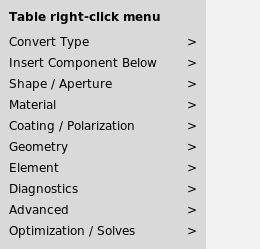
The table right-click menu groups row conversion, component insertion, geometry, diagnostics, and optimization actions.
Convert Typechanges the row to Standard, Aperture, Mirror, Object Target, Diffuse Object, Beam Splitter, Thin Lens, Grating, Image, or converts the selected physical row to an Optical CAD/STL Solid.Insert Component Belowsplices singlets, doublets, flat mirrors, object-target proxy rows, diffuse-object rows, plate/window rows, wedge prism rows, a right-angle prism primitive, a cube beam-splitter primitive, stock lenses, CAD/STL solids, or path-local components.Shape / Apertureexposes Shape Builder plus circular, rectangular, polygon/UDA, annulus, spider, and rectangular clear-aperture presets.Materialopens the glass catalog and applies common materials to selected rows.Coating / Polarizationopens coating/material editing, applies coating presets, enables metal Fresnel mirror mode, and configures beam-splitter Fresnel P/S behavior.Geometryaligns the local row orientation, sets TiltX incidence, reverses elements, and assigns/places rows on the current Path view.Elementcontains grouping, copy/paste, move, path assignment, and path role commands.Diagnosticssets trace/analysis targets and opens ray/path/scene inspectors.Advancedopens native KrakenOS attributes, Error Map, Grating/Galvo settings, and STL diagnostics/placement.
Compact prescription columns
The visible table keeps the columns that are edited most often during lens and
layout work: surface type, material, radius, thickness, aperture, tilt,
decenter, and axis movement. KrakenOS fields that are real but uncommon are
kept in the row model and file export, but edited through Advanced....
k is the conic constant of the base sag. k = 0 is spherical,
k = -1 is parabolic, values below -1 are hyperbolic, and positive
values are oblate ellipsoids. Use it for conic/aspheric surfaces; ordinary
spherical singlets and doublets usually leave it at zero.
Axicon is a conical sag angle in degrees. It is useful for axicons and
Bessel-beam style layouts, but it is not a common day-to-day lens prescription
field.
Open Advanced... -> Shape Params to edit either value. k can also be
marked as an optimization variable from that pane; this writes KrakenOS-native
Var/VarBounds metadata while keeping the main table compact.
Optimization cell marker
Cells selected as optimization variables use a Zemax-style split-cell marker:
the main cell area keeps the numeric value, and a small right-side V badge
marks that value as variable. This replaces the older * suffix and avoids
coloring the whole row, so grouped element colors and row-selection borders
remain readable.
Right-click a supported numeric cell and use
Optimization / Solves -> Select ... for optimization. Supported visible
variables include radius, thickness, tilt, decenter, and grating pitch. Hidden
advanced variables such as conic k can still be enabled from their
specialized dialog, but they do not reappear as main table columns.
Start Optimization runs the optimizer backend preflight automatically and
aborts before spawning the worker if the active Python environment cannot
import pygmo. While a run is active, the same button changes to Stop
Optimization. In the devenv workflow, run devenv shell kraken-install to
reinstall the expected optimizer dependency set.
Developer builds that need a non-wheel pagmo2 library can set
KRAKEN_PAGMO2_LIB to the shared-library path, or to auto for the
historical ~/Projects/pagmo2/_install/lib64/libpagmo.so location.
For a command-line smoke test of the same backend and spawned-worker path, run
python -m KrakenOS.UI.validate_optimization_backend.

The V marker appears inside the selected numeric cell without replacing
the row or element color.
Tolerance Monte Carlo report
The same variable markers can drive a manufacturing/tolerance sweep. Use
Actions -> Tolerance Monte Carlo Report... after marking variables and
choosing merit operands. The report samples each marked variable uniformly
inside its current bounds, evaluates the selected merit function for every
sample, and leaves the nominal editable table unchanged.
If no merit operand is selected, the report uses Spot RMS as the default
diagnostic. The report is copied to the clipboard and written to Debug; use
Actions -> Export Tolerance Monte Carlo CSV... to export the nominal row,
each sampled variable value, total merit, operand values, residuals, and
weighted contributions. This Phase 7E workflow is a deterministic batch engine
and report schema.
By default, every marked tolerance variable is also a compensator. To model a
manufacturing error that should be sampled but not adjusted during compensation,
right-click the marked variable cell and choose
Optimization / Solves -> Do not use ... as tolerance compensator. The UI
saves this as row advanced ToleranceCompensators metadata. Scripts can make
the same choice with
set_tolerance_compensator_enabled(surface_index, parameter, enabled).
Manufacturing variables that move together can share one sampled degree of
freedom. Right-click a marked variable cell and choose
Optimization / Solves -> Set tolerance coupling group.... Variables with
the same group name use the same random quantile during Monte Carlo. Prefix the
group with - to make the variable move in the opposite direction, for
example shared_mount on conic k and -shared_mount on TiltX.
The UI saves this as row advanced ToleranceCoupling metadata. Scripts use
set_tolerance_coupling(surface_index, parameter, group, sign=1) or
sign=-1 for opposed motion.
Each tolerance variable can also carry named manufacturing metadata. Right-click
the marked variable cell and choose
Optimization / Solves -> Set manufacturing metadata.... Enter
source type | source/spec ID | tags | note. For example,
machined mount | MNT-001 | cell, vendor-a | shared cell machining attaches
the variable to a named process/specification without changing how it is
sampled. The UI saves this as row advanced ToleranceManufacturing metadata.
Scripts use
set_tolerance_manufacturing_metadata(surface_index, parameter, source_type=..., source_id=..., tags=(...), note=...).
When the same source is reused, right-click a marked variable that already has
metadata and choose Save manufacturing as template.... Other marked
variables can then use Apply manufacturing template.... Templates are saved
in the layout settings as tolerance_manufacturing_templates. Scripts use
add_tolerance_manufacturing_template(name, source_type=..., source_id=..., tags=(...), note=...)
and
apply_tolerance_manufacturing_template(surface_index, parameter, template_or_name).
Reports, presets, and CSV exports carry manufacturing_source_type,
manufacturing_source_id, manufacturing_tags, and
manufacturing_note columns.
After a Monte Carlo run, use
Actions -> Tolerance Worst-Sample Comparison... to compare the nominal
system against the worst valid perturbed sample. The comparison reports variable
deltas, total-merit delta, and operand value/residual/weighted-term deltas.
Actions -> Export Tolerance Comparison CSV... writes the same comparison
records for external review.
Actions -> Tolerance Stack-Up Dashboard... ranks sampled tolerance variables
using a linearized merit-variance proxy from the valid Monte Carlo samples. The
report includes each variable’s merit slope, correlation, estimated
contribution, worst-sample delta, and compensator/tolerance-only role. It also
includes manufacturing-group rows: uncoupled variables become one-member
groups, while ToleranceCoupling members are ranked together using the
covariance of their sampled deltas. Named manufacturing source/type/tag/note
metadata is copied into both the per-variable and group rows. This is a fast
engineering dashboard, not a full Sobol decomposition. Use
Actions -> Export Tolerance Stack-Up CSV... to export the per-variable
ranked rows. Scripts can export the group rows with
tolerance_stackup_group_csv_rows(dashboard).
Actions -> Tolerance Compensator Sweep... holds the temporary system at the
worst valid Monte Carlo sample and sweeps each eligible compensator over its
bounds. Actions -> Tolerance Multi-Compensator Solve... repeats bounded
one-variable sweeps as a deterministic coordinate solve, accepting only
merit-improving updates. Both reports are diagnostic and leave the nominal
table unchanged; export their traces with the corresponding CSV actions.
Use Actions -> Save Tolerance Solve Preset... to persist the current
Monte Carlo sample count, seed, compensator sweep steps, multi-compensator
steps/passes, selected merit operands, TolCmp view, and tolerance-only
versus compensator roles, coupling groups, and manufacturing metadata into the
layout file. Actions -> Apply Tolerance Solve Preset... restores those
choices without running a trace; the next tolerance report dialogs use the
active preset as their initial defaults.
To see the effect geometrically, click the TolCmp analysis button and then
Update after running the Monte Carlo report. The Tolerance compare left
panel selector chooses the diagnostic:
Spot overlayOverlays the nominal image-plane spot samples against the worst valid Monte Carlo sample, marks both centroids, and reports the merit and RMS spot-radius change.
Stack-up barsPlots the covariance-aware manufacturing-group contribution rows from the tolerance stack-up dashboard. Coupled groups are shown as single bars, so a shared mount, spacer, or machining error is not visually double-counted.
MTF overlayRebuilds the same nominal/worst systems and plots their geometric MTF curves for the largest configured field sample. The annotation reports the selected tangential, sagittal, or average MTF value at the current MTF reference frequency.
Wavefront deltaComputes piston/tilt-removed WFE samples for the nominal and worst systems, then plots the centered
worst - nominalwavefront delta over the pupil. The annotation reports nominal/worst WFE RMS plus delta RMS and P-V in waves.
Both overlays are diagnostic only: they rebuild temporary nominal/worst systems
from the Monte Carlo records and do not change the editable table.
Use Actions -> Export Tolerance Overlay CSV... to write the currently
selected overlay data. The CSV schema follows the selected view: spot point
coordinates, manufacturing-group stack-up rows, MTF frequency samples, or WFE
pupil samples.
Prisms and cube beam splitters
Simple prisms can be built from table rows. A wedge prism is two tilted Standard
surfaces: the first enters glass, the second exits to AIR. The right-click
Insert Component Below -> Wedge Prism command creates this starter block.
For arbitrary prism solids, use Convert Type -> Optical CAD/STL Solid or
Insert Component Below -> Optical CAD/STL Solid. A closed mesh is the
physically correct UI representation when rays may hit side faces, experience
total internal reflection, or leave through a non-sequential face.
After importing a file-backed solid, use Actions -> Assign CAD/STL Optical
Faces or the row context menu Advanced -> Assign CAD/STL Optical Faces to
record the optical intent of the mesh. The dialog clusters planar STL triangles
into candidate faces and lets you assign Input Port / optional Output Port /
Interaction Surface plus a coating model such as Uncoated, Full
Reflecting, Partial Reflecting / Transmitting, or Absorbing /
Mechanical. These labels are metadata used by the UI workflow and validators;
KrakenOS still performs the physical ray trace through the closed
Solid_3d_stl geometry and row material.
This is not yet the final prism authoring workflow. It is accurate as a KrakenOS execution model, but too pose-math-heavy for practical optical design. The future workflow should be a 3D scene-object placement tool: import the solid, select or fit the intended optical faces/axes visually, snap the prism to a traced ray or path frame, and then write the resulting pose back to the table only as saved implementation data.
Insert Component Below -> Cube Beam Splitter creates a practical starter:
entrance face, internal 45 degree Beam Splitter surface, and transmit exit face.
It is enough to start deterministic transmitted/reflected path design. For a
closed cube with every side face available to tracing, use an Optical CAD/STL
Solid for the external cube boundary and keep a Beam Splitter table surface for
the internal coating/path metadata. Vendor CAD generally does not encode the
split ratio, phase, or internal coating as ray-trace-ready physics.
Tilt and decenter tolerance overlays
The pose columns TiltX, TiltY, TiltZ, DespX, DespY, and
DespZ accept comma-separated values or start:stop:step ranges. For
example, enter -0.1, 0, 0.1 in TiltY or -0.05:0.05:0.05 in
DespX.
The middle value becomes the nominal scalar KrakenOS row value. The full list is
stored as Advanced -> Display2D -> pose_tolerance_overlay and the 2-D plot
draws additional dashed ray traces plus dashed affected surface positions. If
several pose cells contain lists with the same length, the values are swept
together by index. If the list lengths differ, combinations are generated and
truncated to 25 variants.
For grouped elements, enter the pose list once on any row in the element. The UI applies the same delta sweep to every row in the contiguous element block, so a doublet behaves like one mechanically shifted component instead of three independent tilted/decentered surfaces.
Mirror TiltX keeps the dedicated galvo/folded-scan interpretation because
its displayed value is mirror slant, not raw KrakenOS local tilt. It still uses
the same comma/range entry syntax.
Validation
Run the workflow regression check with:
python -m KrakenOS.UI.validate_table_component_workflow
python -m KrakenOS.UI.validate_compact_shape_fields
The first check inserts a common component while preserving global source/field
settings, then copies and pastes grouped component rows while confirming that
Object and Image are not duplicated. The compact-shape check confirms
that k and Axicon are hidden from the main table, still reach KrakenOS
surface construction, and remain optimizer-addressable where supported.